
Filtering is a way of helping one narrow down the information to be viewed/analyzed. The dashboard allows one to apply filters on on different parameters which are grouped into 5 categories listed below:
- Hierarchy Filter
- Question Filter
- Text Filter
- Transaction Filter
- Action Filter
All filters are available at project level, except the Transaction filters which are available at both, project and account level. The hierarchy filters are available on the top left corner of the dashboard below the project logo while all other filter categories can be accessed by clicking on the filter button available on the top right corner below the user profile button.
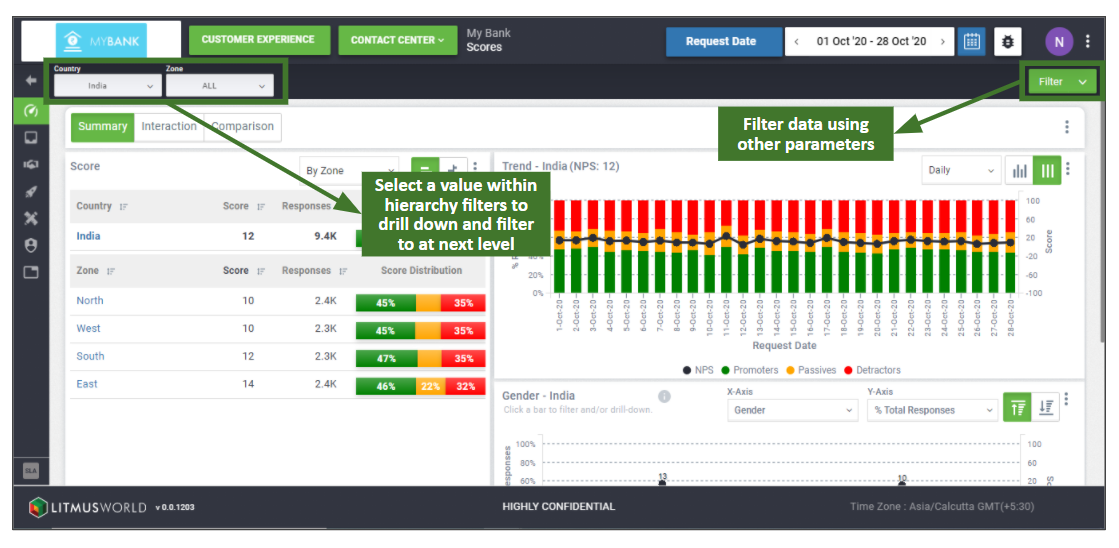
The hierarchy filters can be applied by selecting the value or searching it under the dropdown available for each level and traverse through the hierarchy for filtering. Filters from all other categories can be applied by clicking on the filter button and selecting one or more filters across categories followed by clicking the ‘Apply’ button. Details of the filters applied show up next to the filter button and can be removed by clicking on the ‘x’ option next to it. Also one can clear all filters by clicking on clear filter option available.
Hierarchy Filters
Hierarchy filters allow you to analyze data by narrowing down the information to be viewed/analyzed into a particular organization level/hierarchy set up within a project or search a value at any level within the hierarchy and are available only at the project level.
To apply Hierarchy filter, click on the rectangle box on the top left corner of the dashboard and select the value for which data needs to be looked into. The data on the dashboard would be filtered out and another rectangle box with details for the next level would show up. Similarly, one can filter and traverse through the hierarchy until they reach the last level in the hierarchy.
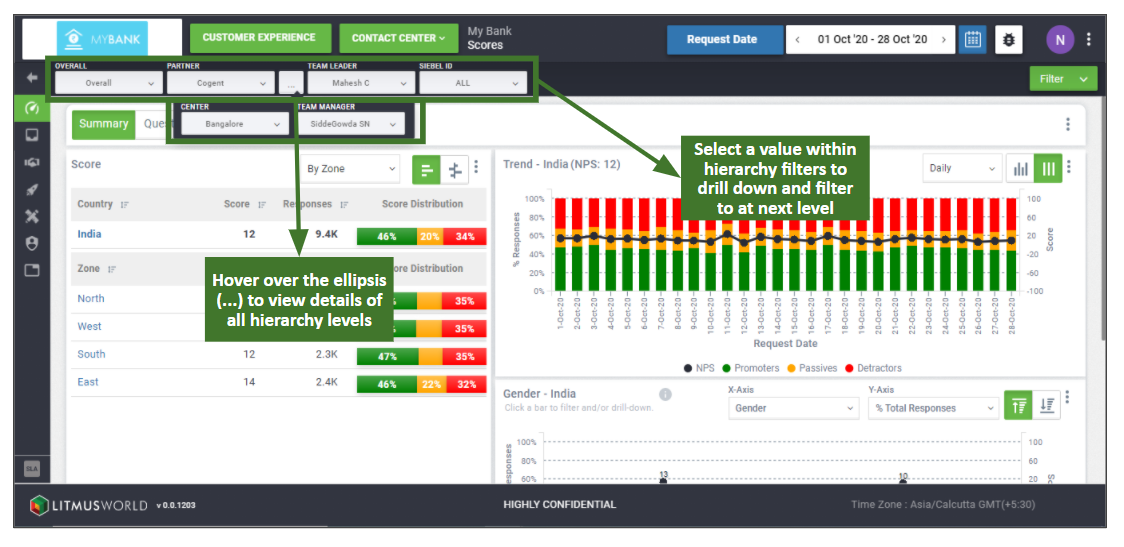
In case more than 10 values are available at any level while filtering out data, only 10 values are shown by default in the list available sorted in ascending order of their names, while the others can be accessed using the search box. Also if one traverses and filters through more than 4 hierarchy levels, details for the first and the last two levels are shown up front, while the others can be accessed by hovering over the ellipsis (…) icon available between the first and last two hierarchy level filters applied.
Question Filters
Question filters enable filtering responses based on the response received for one or more question within a conversation. For each question one is expected to select the field operator along with one or more options to be filtered out. Open ended questions which asks customers to enter their comments are not listed down within question filters and are covered as a part of text filter.
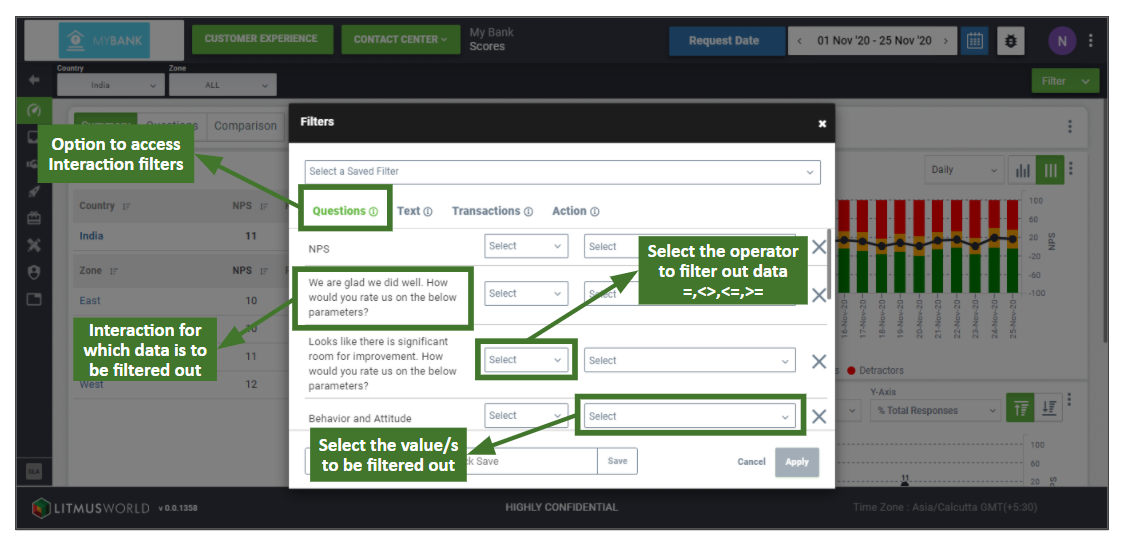
To filter responses, click on the Question option (selected by default) on the top of the filter window. For each question you are expected to select
- The field operator from ‘Equal to’, ‘Not equal to’, ‘Greater than’, ‘Less than’ and ‘Between’
- One or more options based on the field operator selected. It is mandatory to select a field operator before selecting any of the options. The field operators vary based on the type of interaction. Mentioned below are two types of questions and their respective field operators:
| Question Type | Field Operators |
| Scale/Rating Question: | Rating interactions have all possible field operators available for selection. – Equal to – Not equal to – Greater than – Less than – Between |
| Single/Multi Select Question: | Single/Multi select interactions include the following operators – Equal to – Not equal to |
You can click on the checkbox to select an option and click on it again to deselect it. By clicking on the ‘Apply’ button on the bottom left corner of the screen, the filters are applied showing data for those responses which satisfy the filter conditions set.
Text Filters
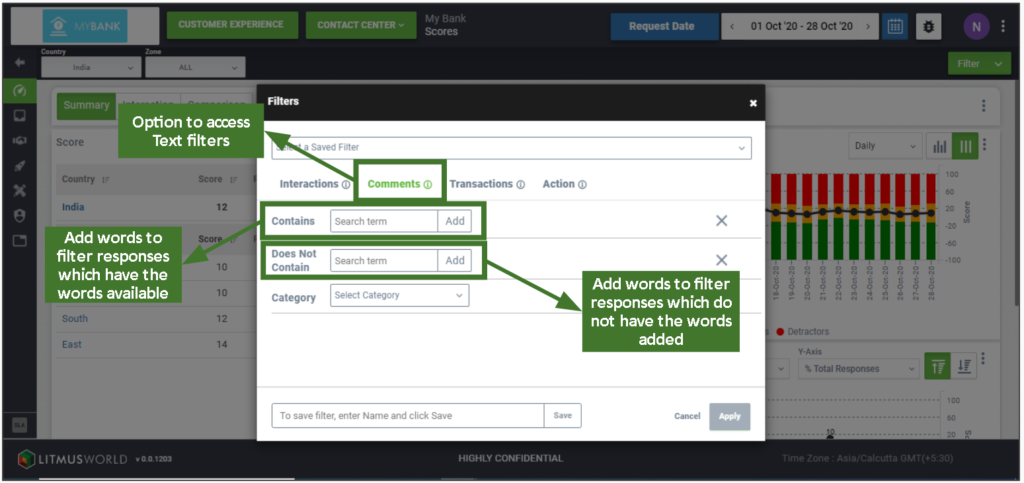
Text filter allows you to filter responses based on the word/s which have been used by customers in their comments. Alternatively you can also filter out responses which do not contain a particular word/s.
Transaction Filters
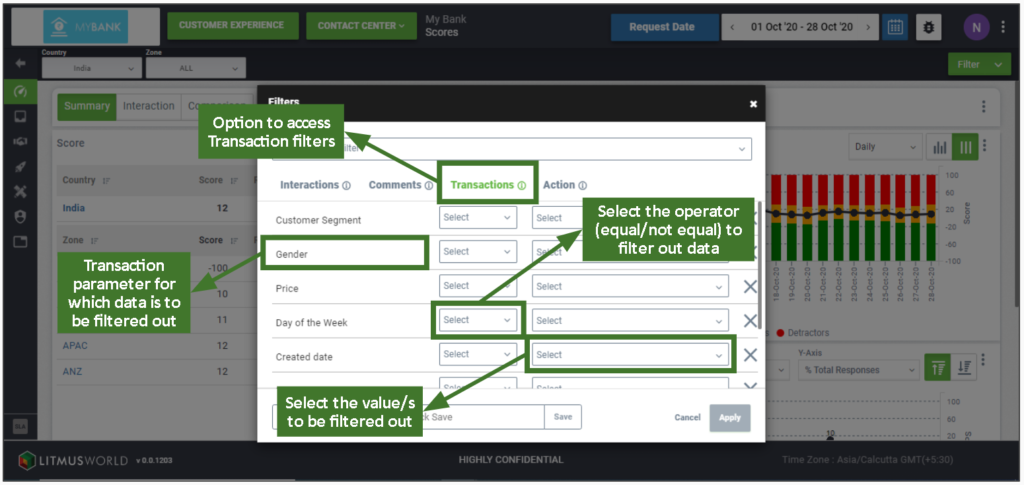
The transaction filters enable you to filter responses on the basis of transaction parameters For each parameter you are expected to select the field operator from ‘equal to’ and ‘not equal to’ and one or more options by searching them.
Action Filters
Action filters allow you to filter responses based on all the fields available in the Inbox for which you need to select the field operator i.e. ‘equal to’ or ‘not equal to’ for all fields along with one more more values for which responses are to be filtered.